

Home / MIDI Controller Pad, Customizable Keys, with 16 RGB Drum Pads, 2 fader, 2 knobs, Portable MIDI Drum Pad, for Music Production
  • MIDI Controller Pad, Customizable Keys, with 16 RGB Drum Pads, 2 fader, 2 knobs, Portable MIDI Drum Pad, for Music Production
  • MIDI Controller Pad, Customizable Keys, with 16 RGB Drum Pads, 2 fader, 2 knobs, Portable MIDI Drum Pad, for Music Production
  • MIDI Controller Pad, Customizable Keys, with 16 RGB Drum Pads, 2 fader, 2 knobs, Portable MIDI Drum Pad, for Music Production
  • MIDI Controller Pad, Customizable Keys, with 16 RGB Drum Pads, 2 fader, 2 knobs, Portable MIDI Drum Pad, for Music Production
  • MIDI Controller Pad, Customizable Keys, with 16 RGB Drum Pads, 2 fader, 2 knobs, Portable MIDI Drum Pad, for Music Production
  • MIDI Controller Pad, Customizable Keys, with 16 RGB Drum Pads, 2 fader, 2 knobs, Portable MIDI Drum Pad, for Music Production
  • MIDI Controller Pad, Customizable Keys, with 16 RGB Drum Pads, 2 fader, 2 knobs, Portable MIDI Drum Pad, for Music Production
  • MIDI Controller Pad, Customizable Keys, with 16 RGB Drum Pads, 2 fader, 2 knobs, Portable MIDI Drum Pad, for Music Production
  • MIDI Controller Pad, Customizable Keys, with 16 RGB Drum Pads, 2 fader, 2 knobs, Portable MIDI Drum Pad, for Music Production

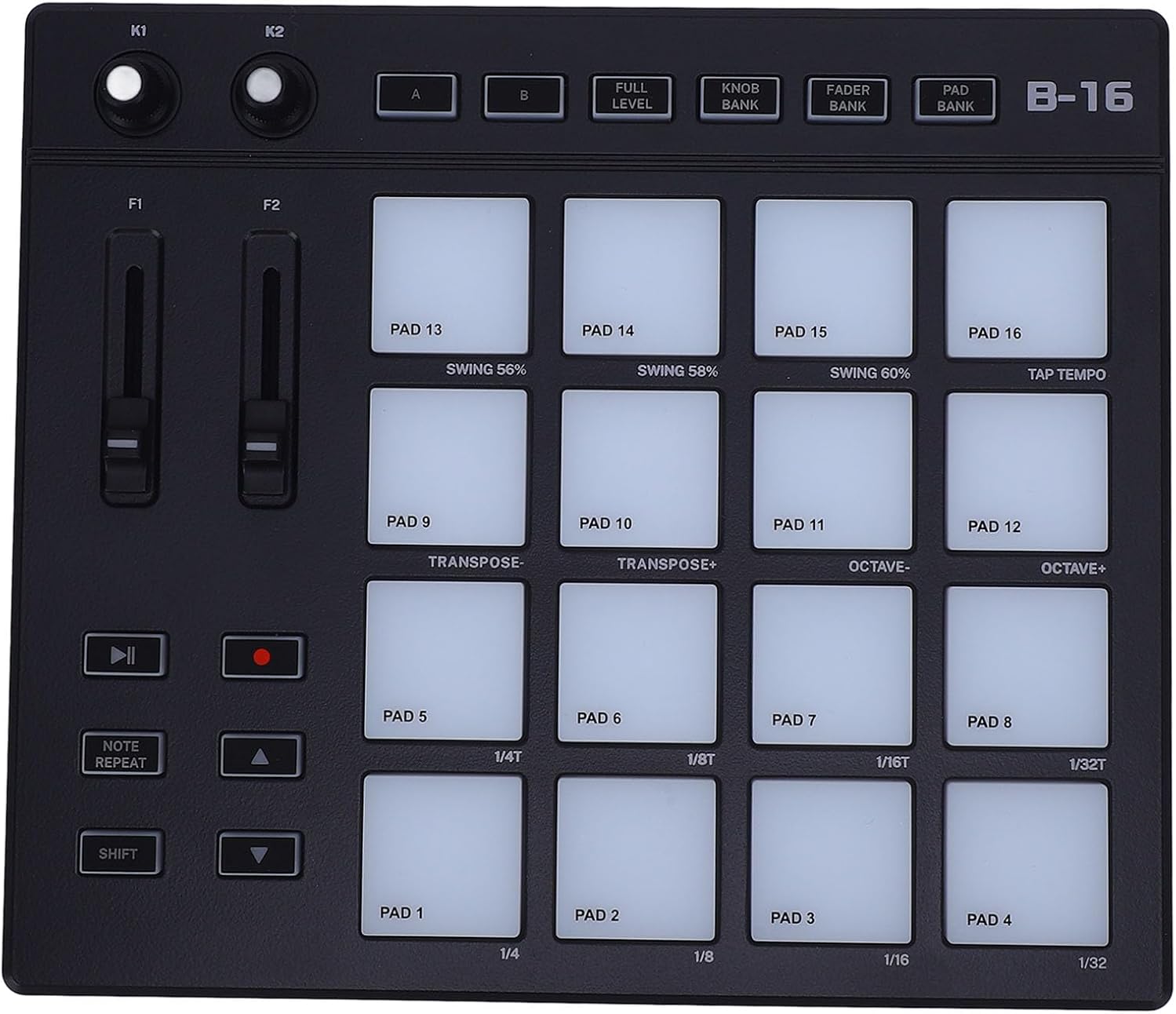
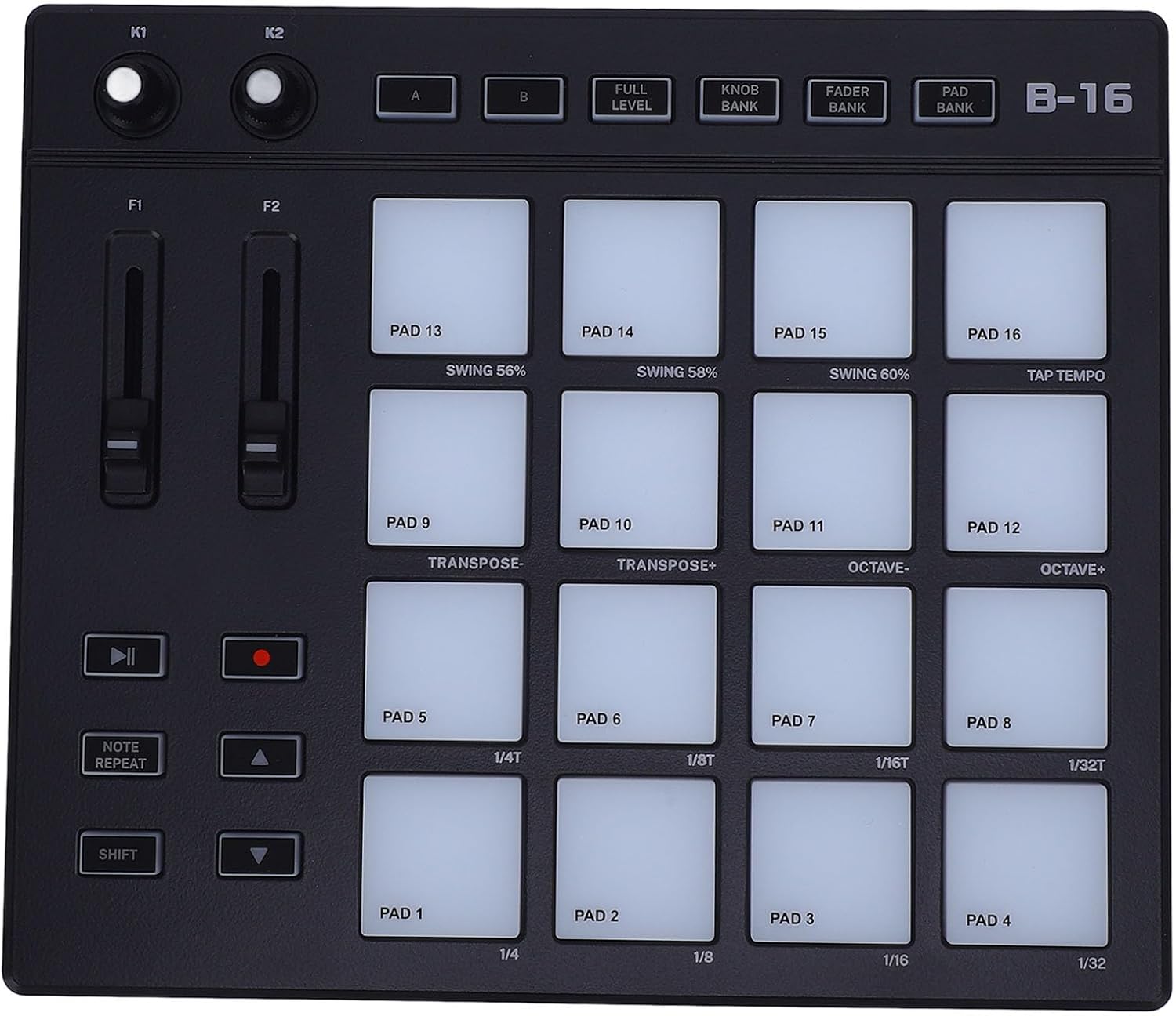
MIDI Controller Pad, Customizable Keys, with 16 RGB Drum Pads, 2 fader, 2 knobs, Portable MIDI Drum Pad, for Music Production

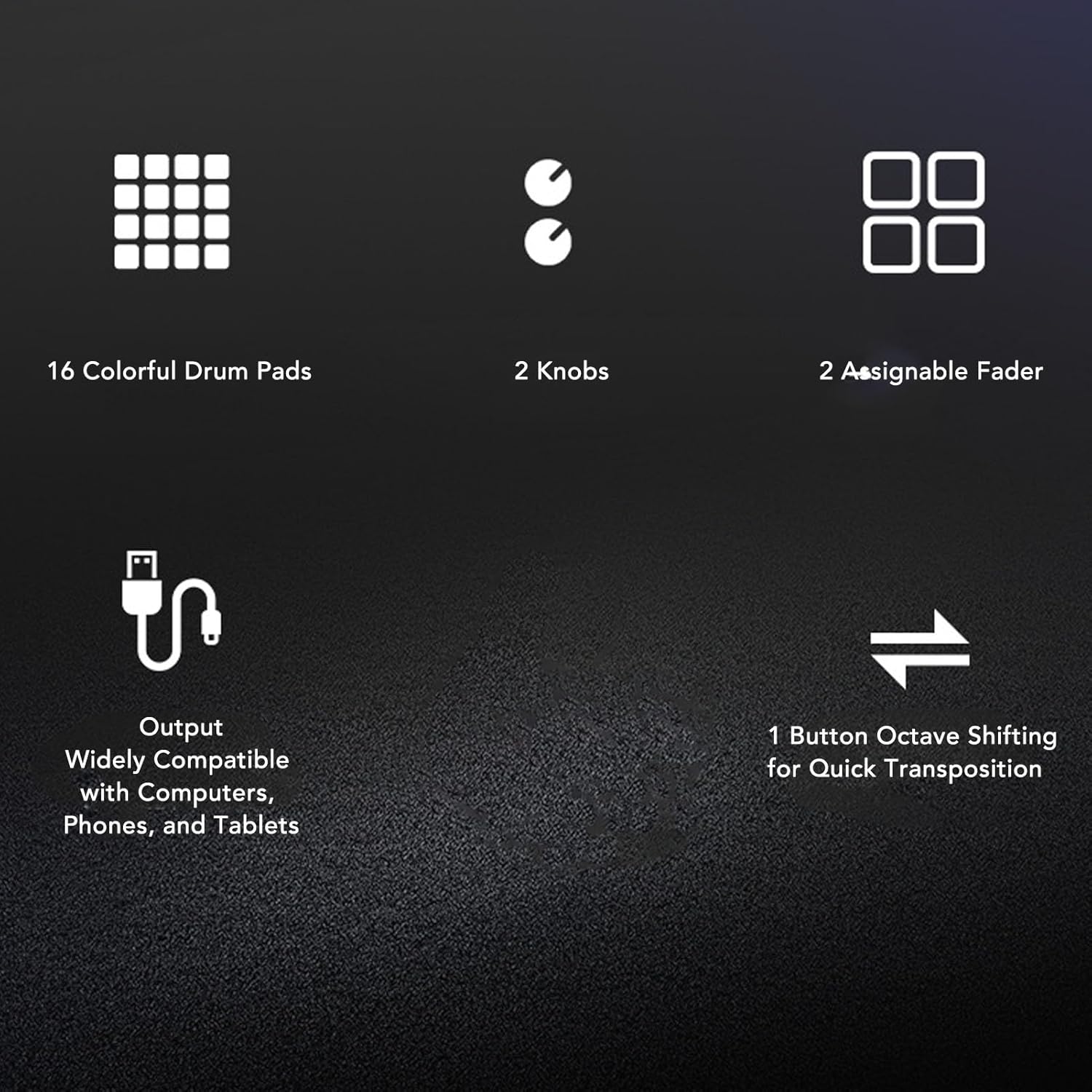
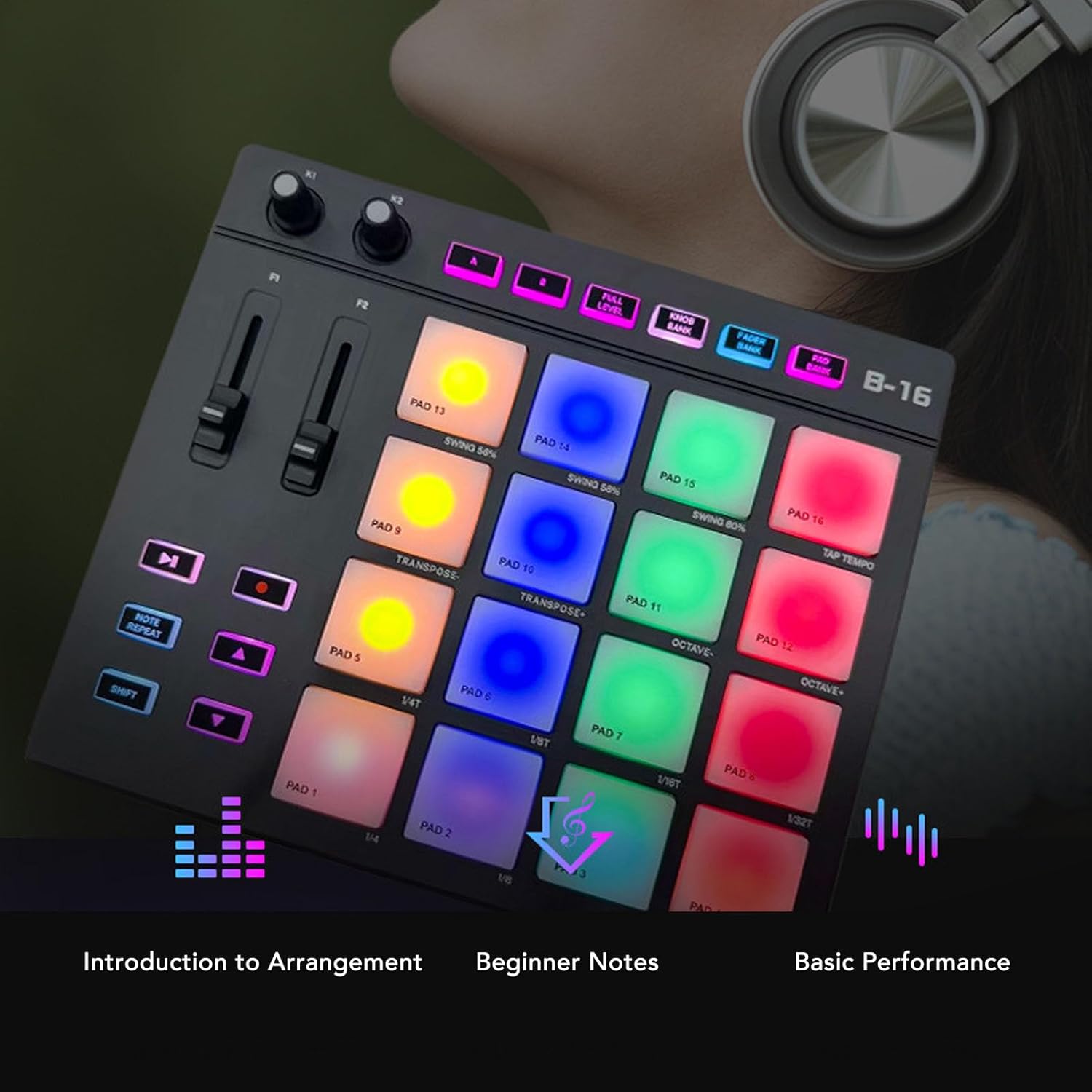
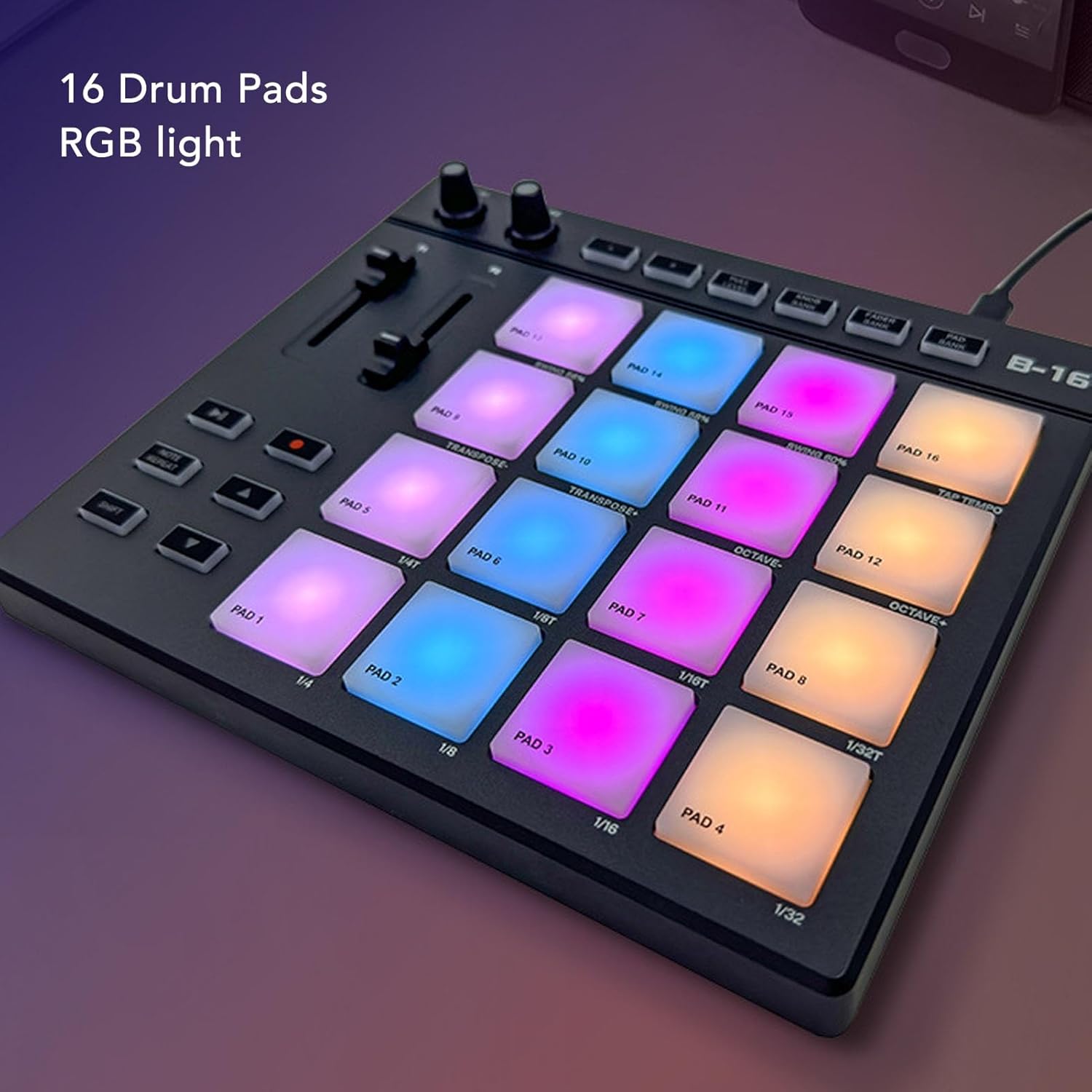
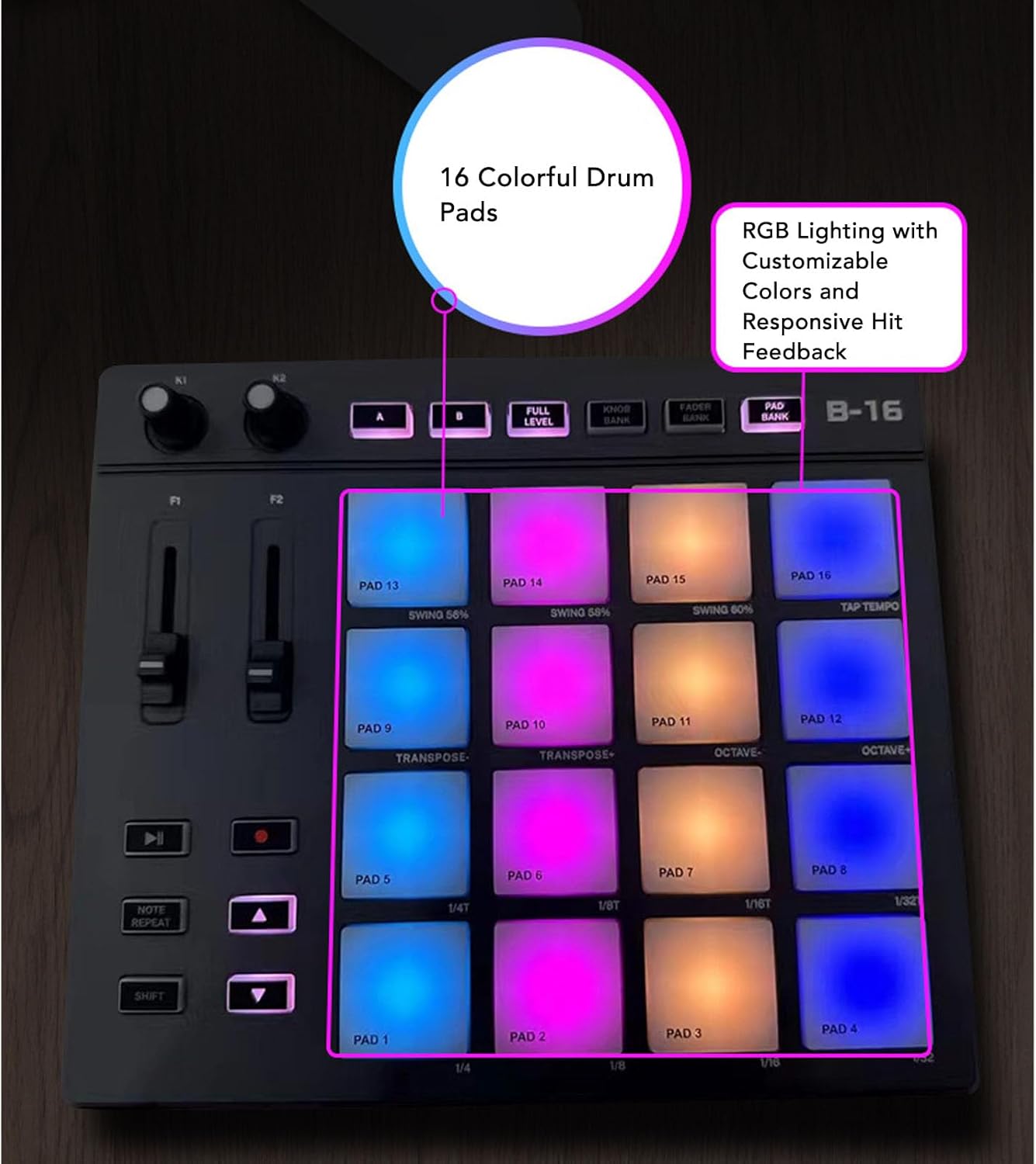
Portable Design: MIDI drum pad controller boasts a lightweight design for on the go music production. With 16 vibrant, color illuminated drum pads, you can produce music anytime and anywhere. Record up to 48 custom sounds for creativity.
Versatile Controls: MIDI controller pad features 2 assignab
Quantity
ADD TO CART
BUY IT NOW
  • Detail

    Specification:

    Item Type: MIDI Controller Pad
    Material: ABS, Silicone

    How to Use:
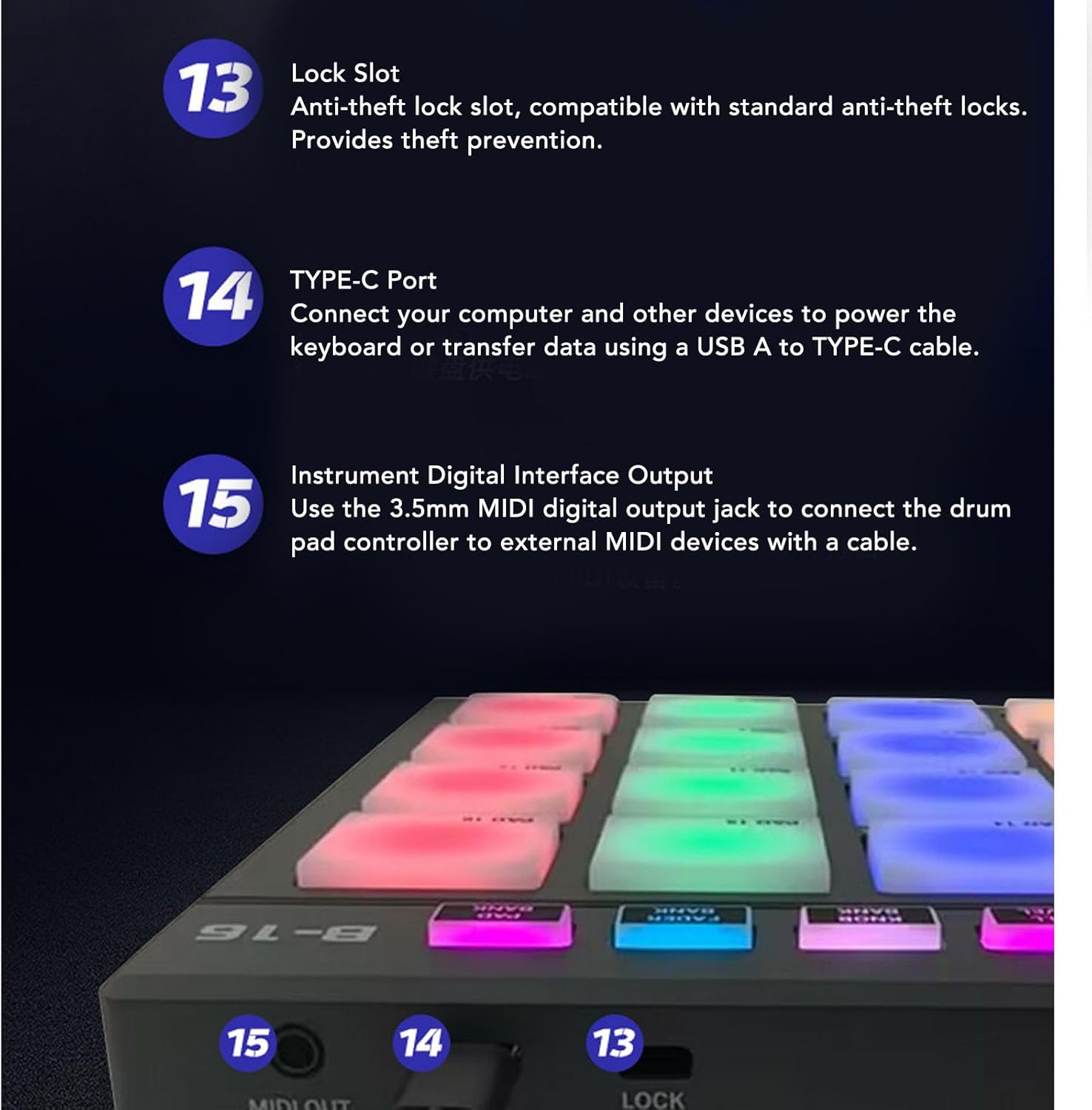
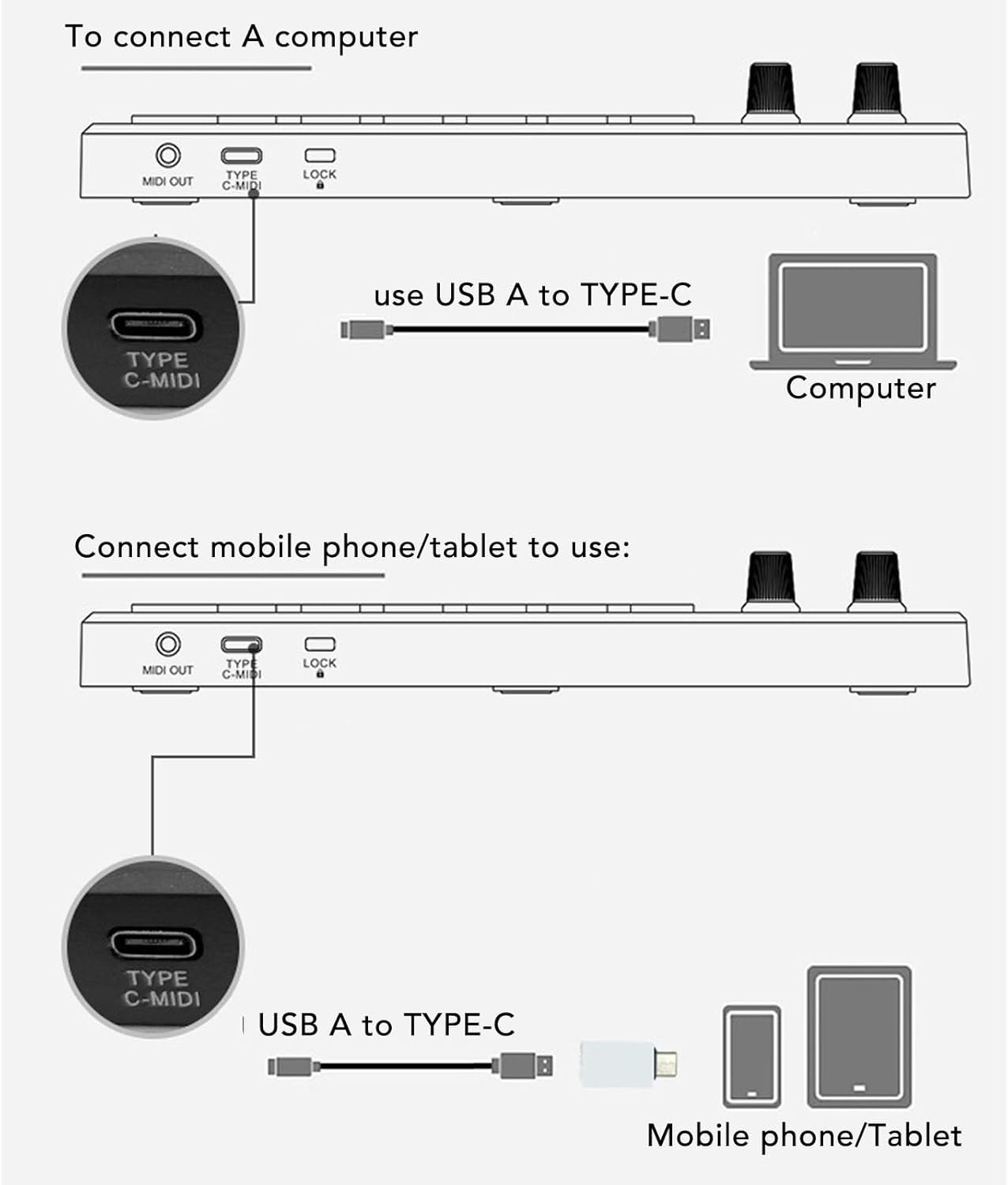
    1. Connect the device: Use a USB cable to connect the controller to your computer. - Ensure that the controller's power is turned on.
    2. Install the driver:
    Recommended sound workstation software:
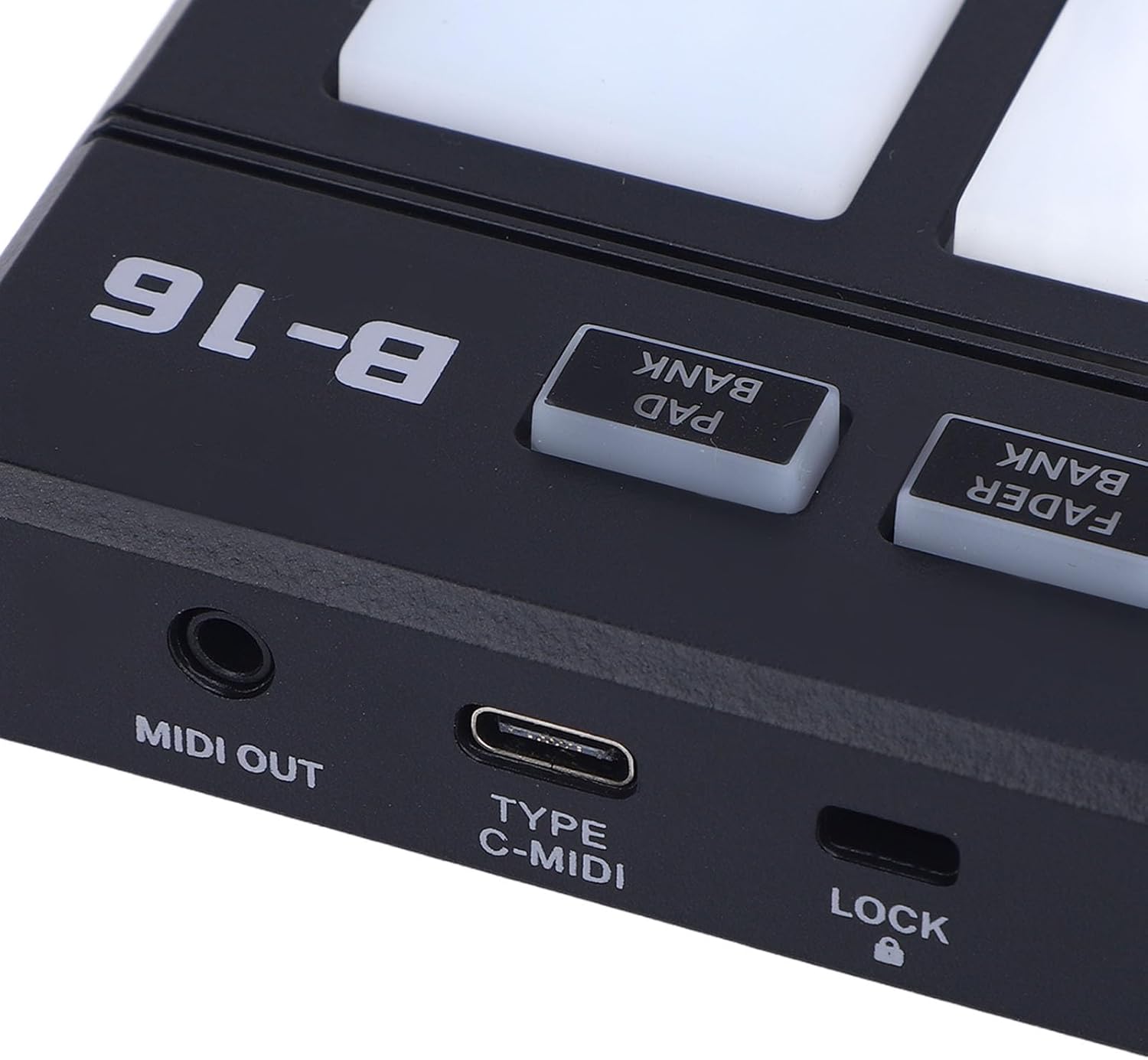
    The drum pad controller will be displayed as an input and output device in the instrument digital interface settings of the sound workstation software. Before starting your composition, you need to set the drum pad controller as an input device in the instrument digital interface settings of the sound workstation. Once this setting is complete, your software can receive note and controller data from the drum pad controller.
    List of recommended sound workstation software:
    For FL Studio, for , for Reason, for Audition, for Logic, for Sonar, for , for Reaper, for Waveform, for Cubase or for
    3. Choose software: Open your music production software. Set up MIDI input and output in the software, selecting your controller as the input device.
    4. Configure the controller: In the music production software, configure it according to the layout and functions of the controller. Typically, each buttons, knob, and slider on the controller can be to different functions such as triggering notes, adjusting parameters, etc.

    Package List:
    1 x MIDI Controller
    2 x Cables
    1 x Converter
    1 x Storage Bag

  • Customer Reviews
    No comments